Setting Up Email on a Samsung Device
Learn how to set up your Samsung device to work with your email accounts hosted in Plesk. This guide walks you through each step so you can access and manage your emails on the go.
Steps
- Open the Settings app on your device
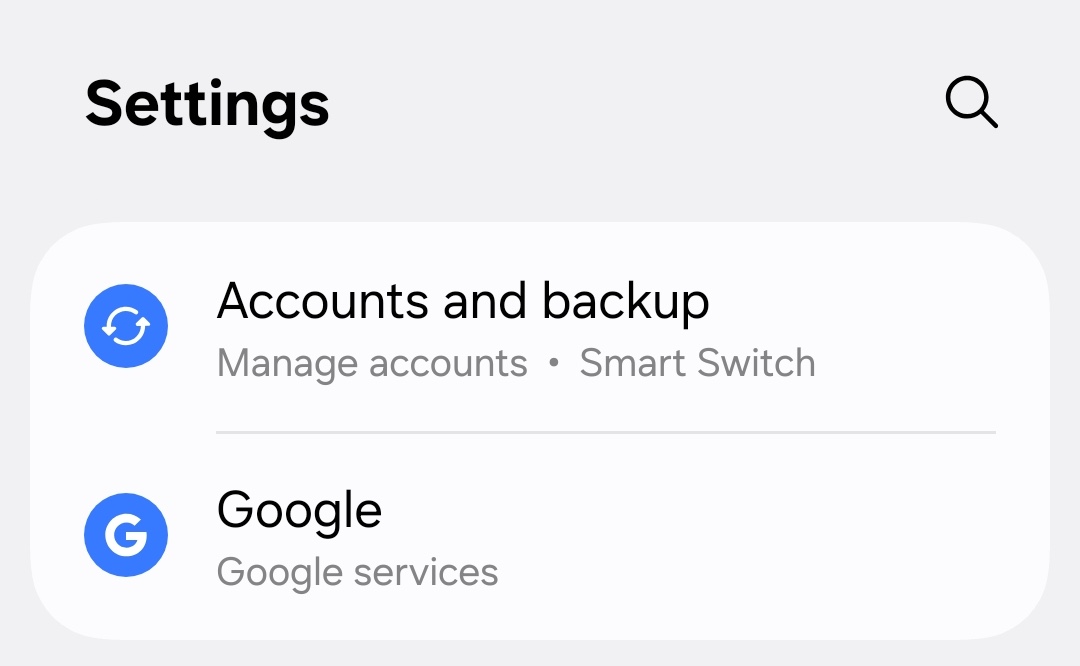
- Tap Accounts and backup
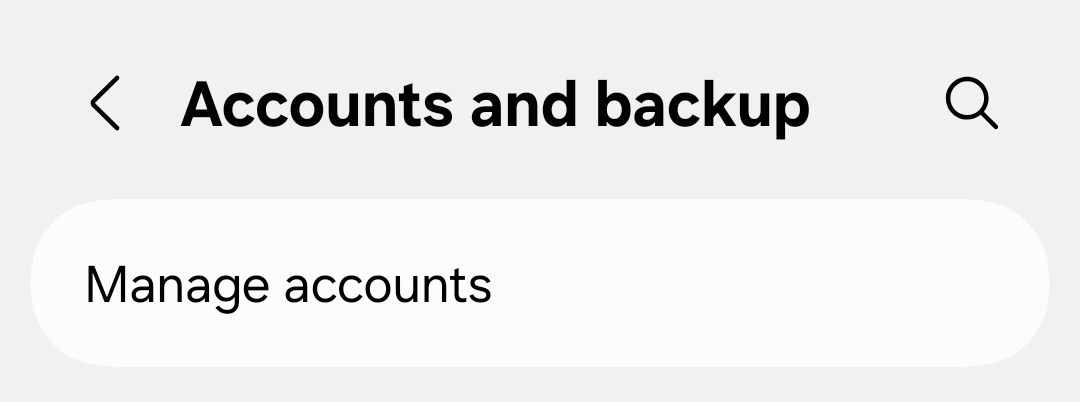
- Tap Manage accounts
- Tap + Add account
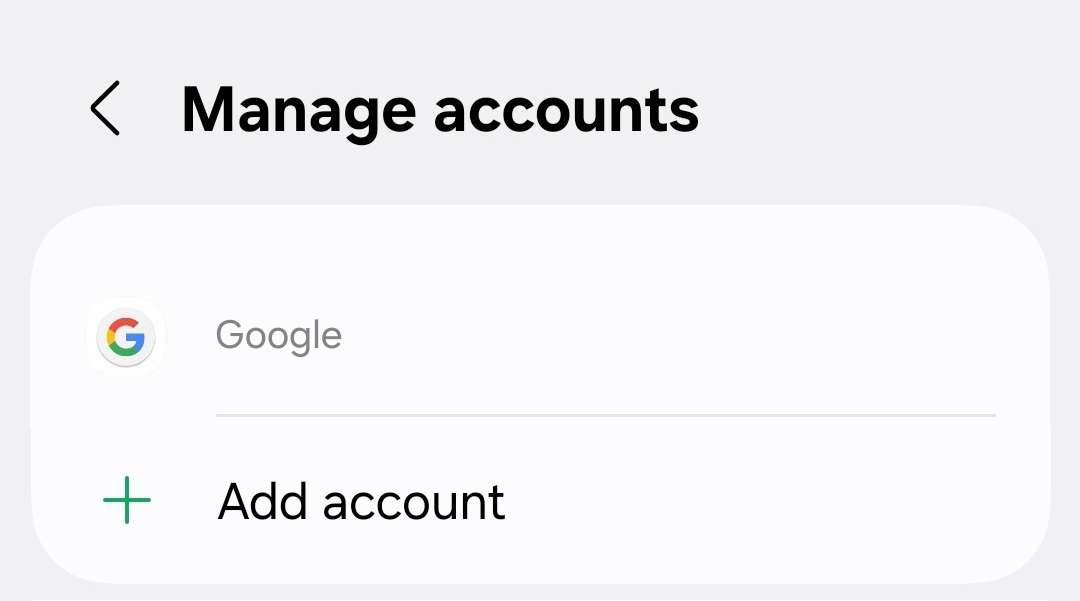
- Select Personal (IMAP)
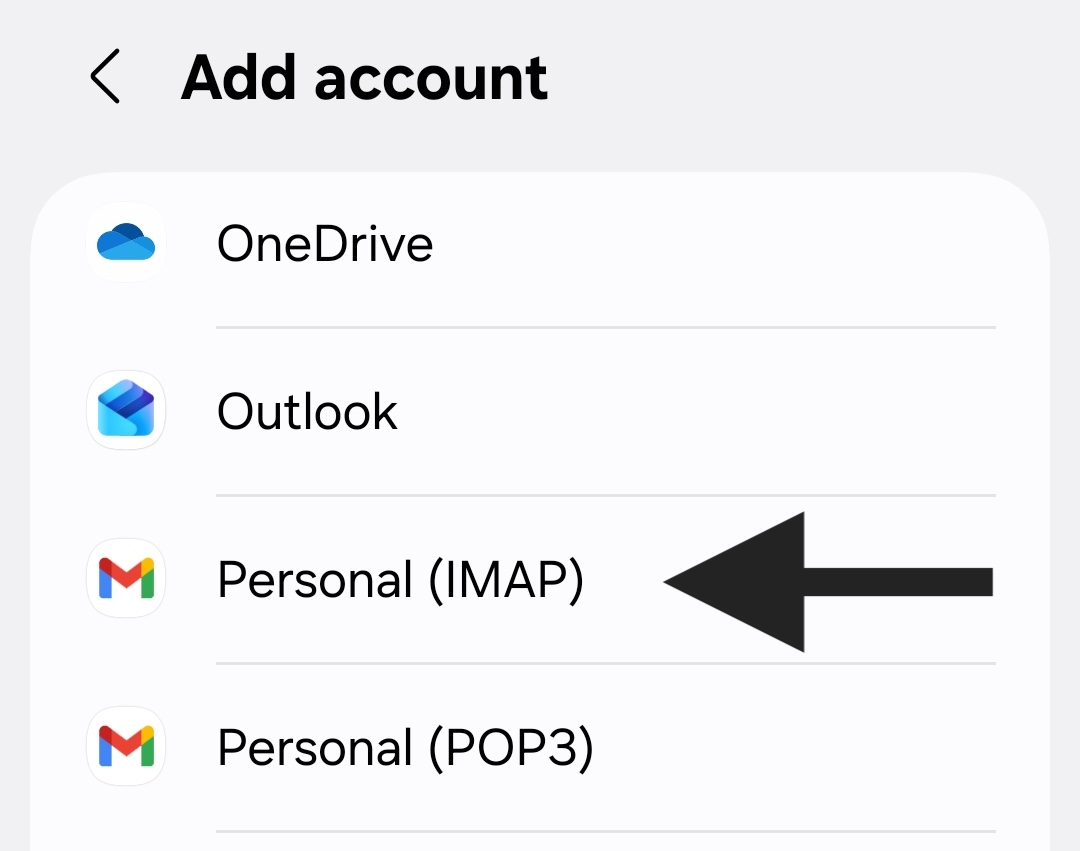
- Enter your email address
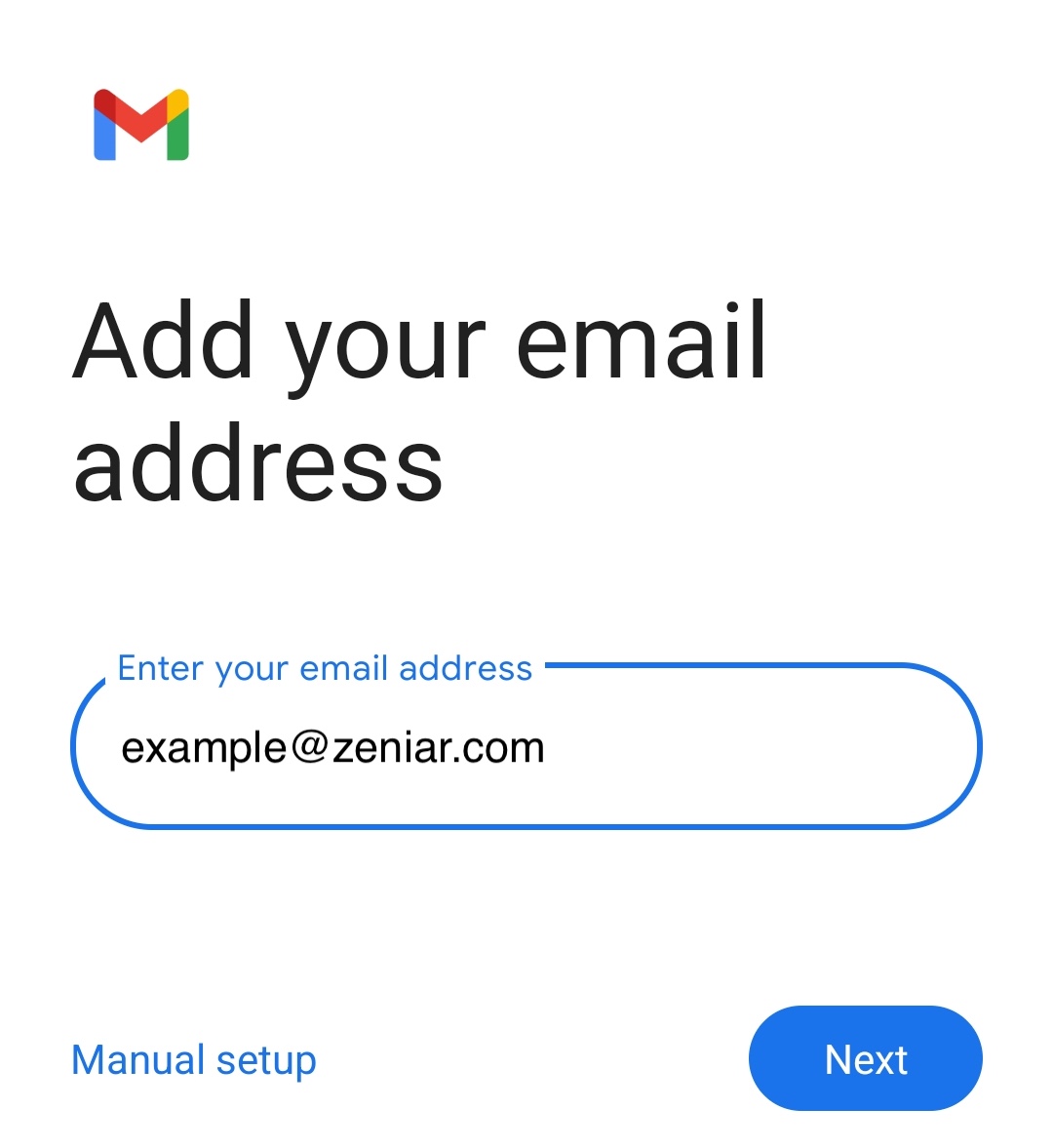
- Enter your email password
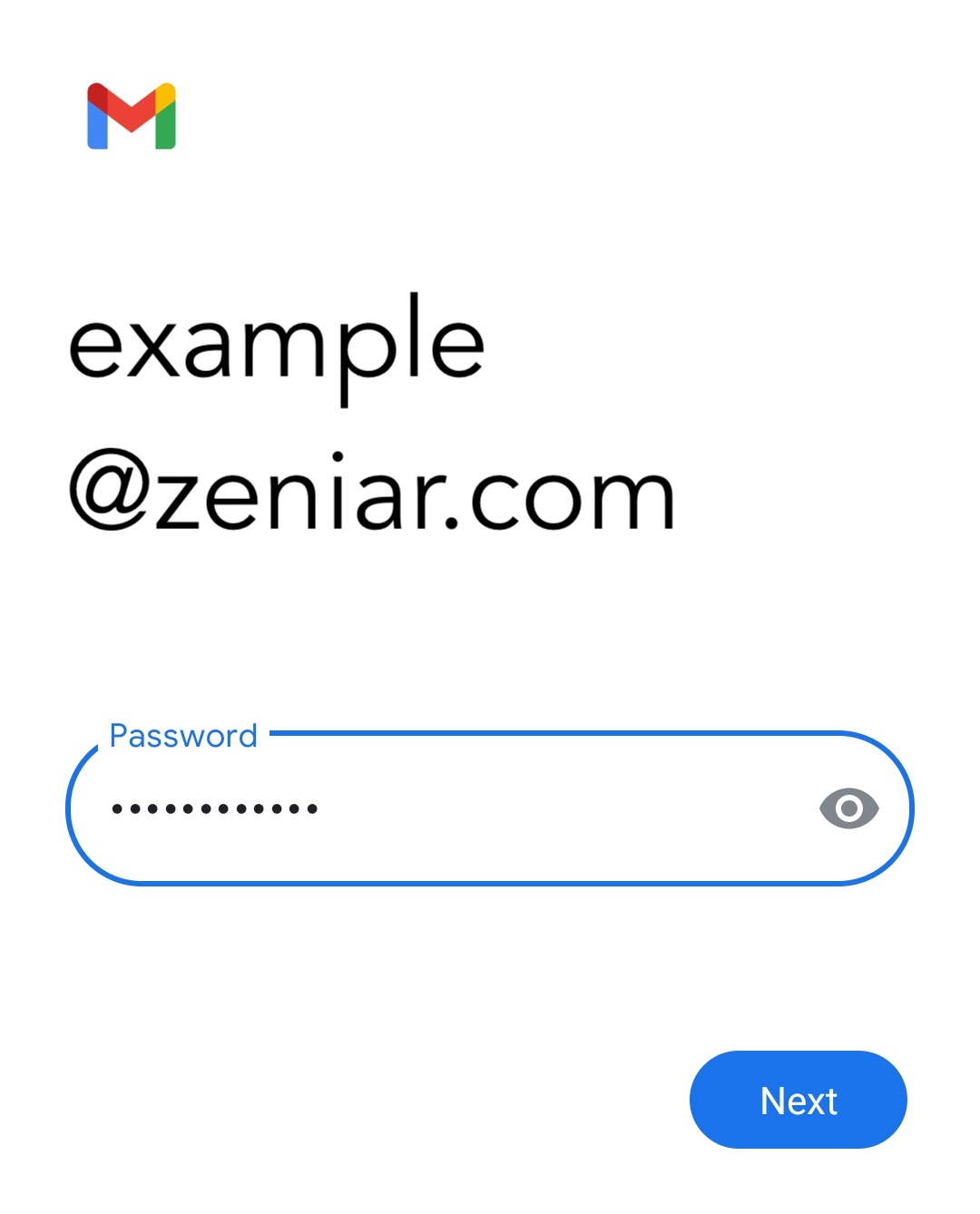
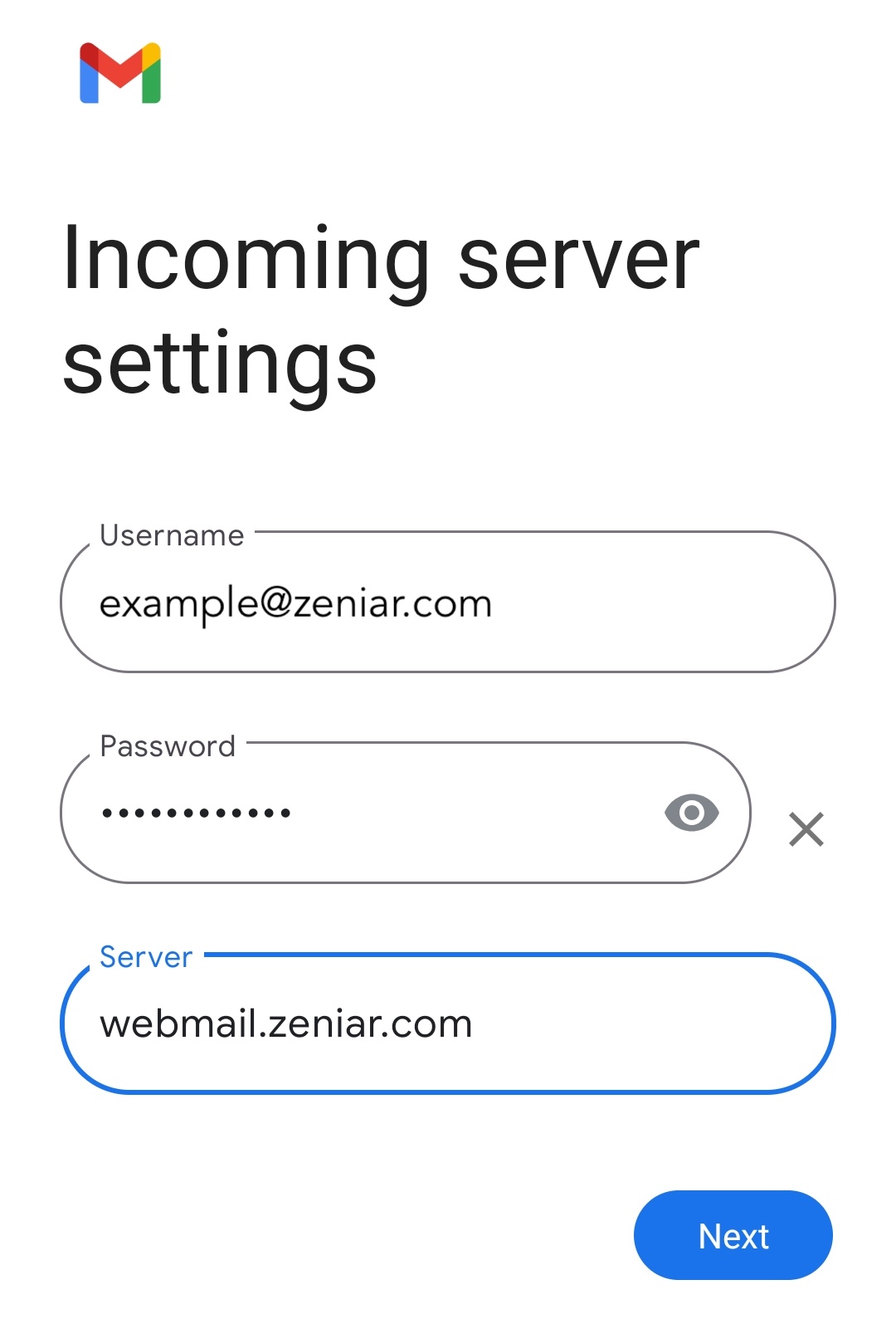
- Under Incoming server settings, change the server to webmail.zeniar.com
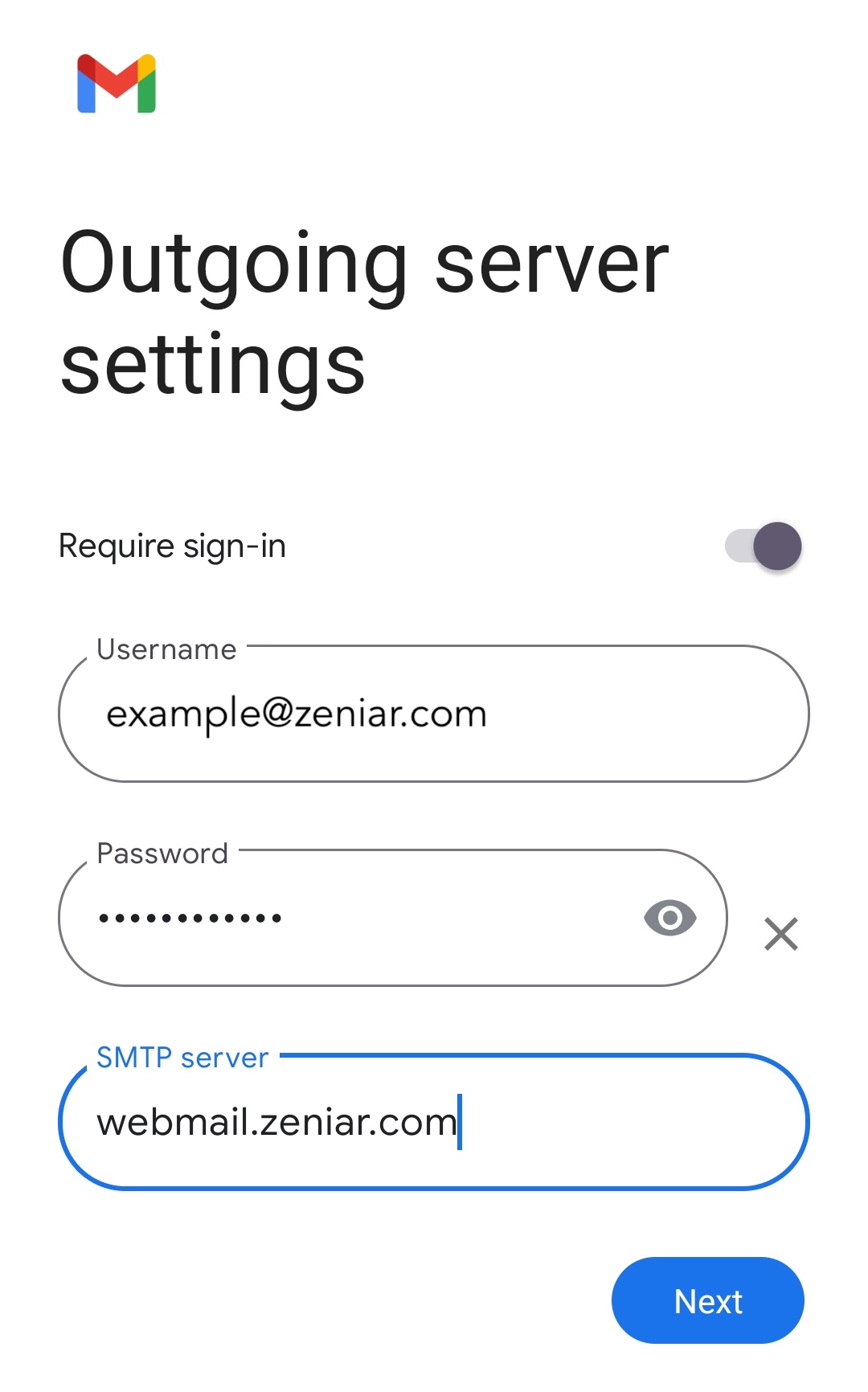
- Under Outgoing server settings, change the server to webmail.zeniar.com
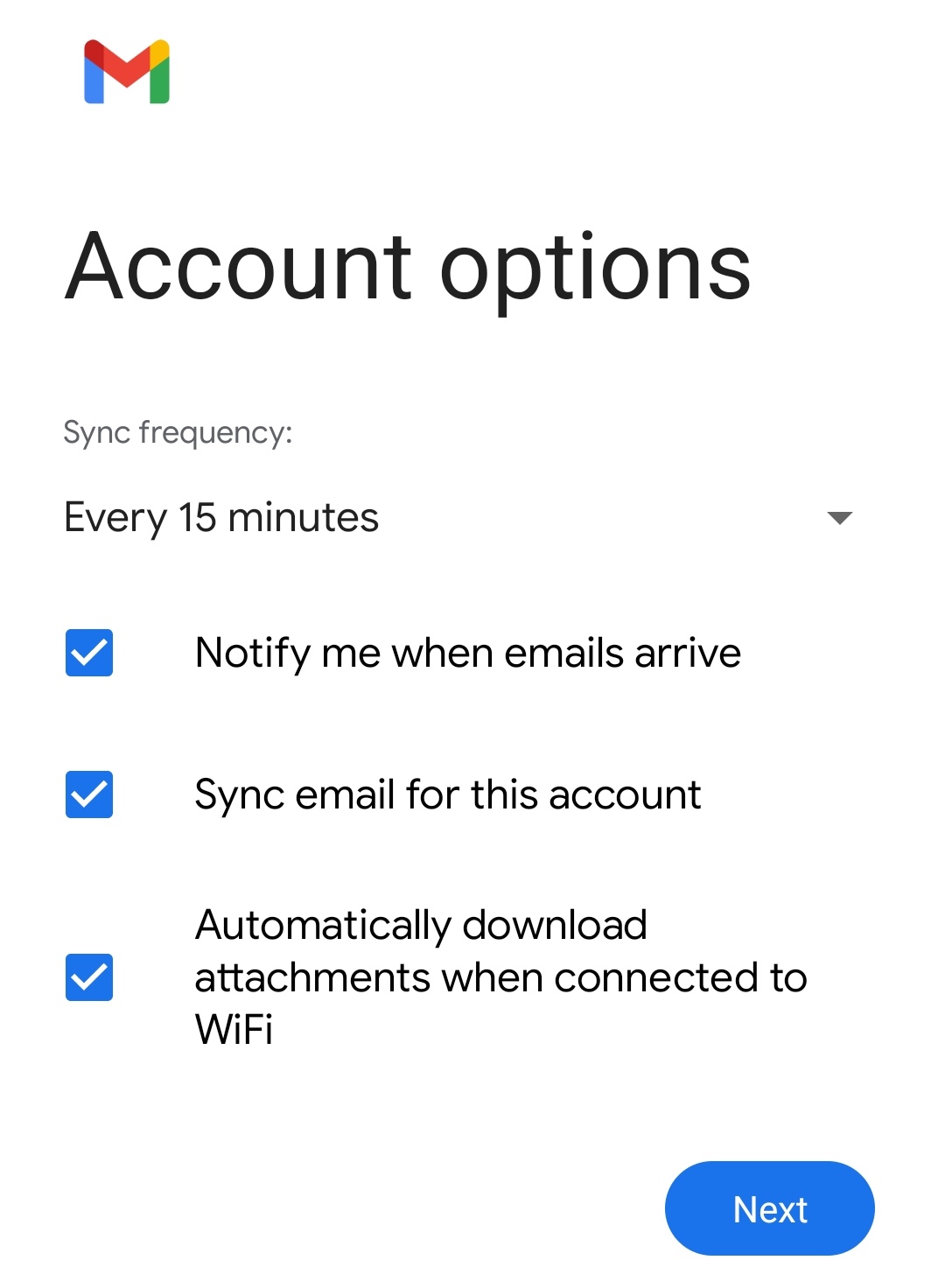
- Tap Next to continue to Account Options
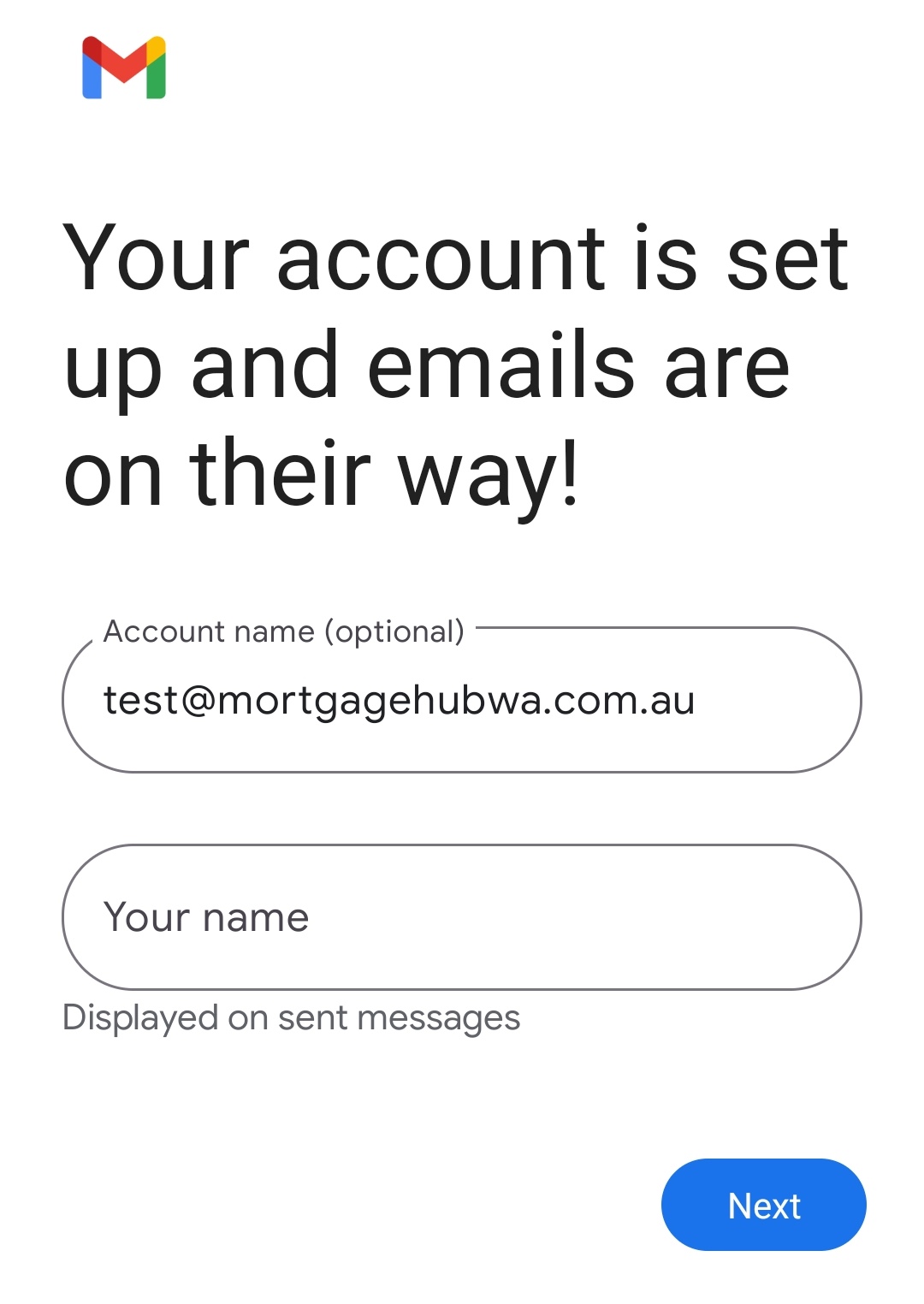
- Set your display name and tap Next
- Open the Gmail app on your device to access your email